2D CAD tool · free
How to add dimensions in 2D CAD
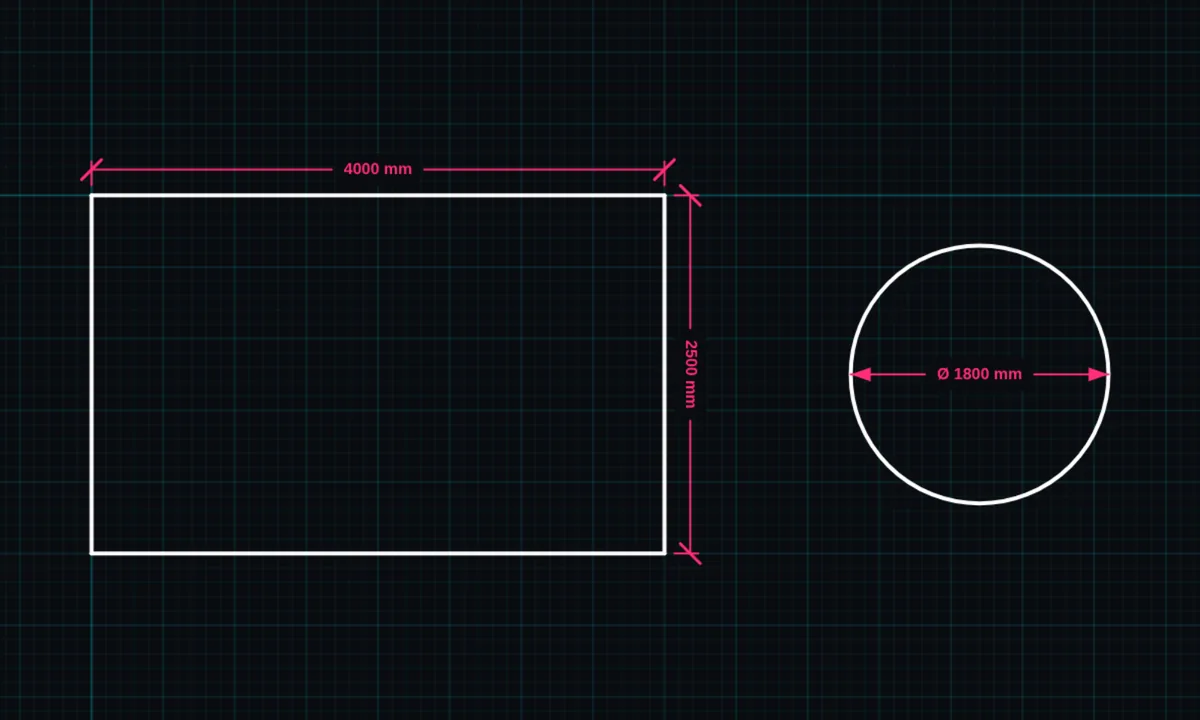
Dimensions show the real size of your drawing. BenCAD measures in millimetres from the scale you set, and offers linear, angular, radius, diameter, arc length and parallel dimensions.
Opens BenCAD with dimensions ready. No download, no sign-up.
How to use dimensions in BenCAD
- Pick DIMTap DIM in the toolbar, in the Annotate group, and choose the dimension type.
- LinearDrag from the first point to the second, or tap one point and then the other. End points snap so the measurement is exact.
- Radius and diameterTap an arc for a radius (R) or a circle for a diameter (Ø).
- AngleTap the first line, then the second, to dimension the angle between them.
Tips
- Dimensions follow the shapes they measure: move or stretch a line and its dimension updates.
- Line lengths and radii can also show automatically as labels while you draw. Turn AUTO-LABELS on or off in the side menu.
- Dimensions print at true scale on the print-ready sheet and export to DXF on their own layer.
Questions
What units does BenCAD use?
Millimetres by default, worked out from the scale you set. Imperial units are available in BenCAD Pro.
Are dimensions free?
Yes. All dimension types are in the free version.
Related tools
Print to scale PROTrue-scale PDF with a title blockExtendLengthen a line to meet an edgeTrimCut lines back to where they cross
Guides
- What is 2D CAD?
- CAD on your phone
- How to draw to scale online
- How to convert a DXF to PDF at the right scale
- How to print a CAD drawing to scale
Related reading
- 2 Bed Flat Layout Design: Getting the Room Split Right
- The UK's Cowboy Builder Crackdown — And Why Professional Tradespeople Should Welcome It
- How to Draw a Floor Plan in Minutes with BenCAD
More tools: all 2D CAD tools in BenCAD.