2D CAD tool · free
How to trim lines in 2D CAD
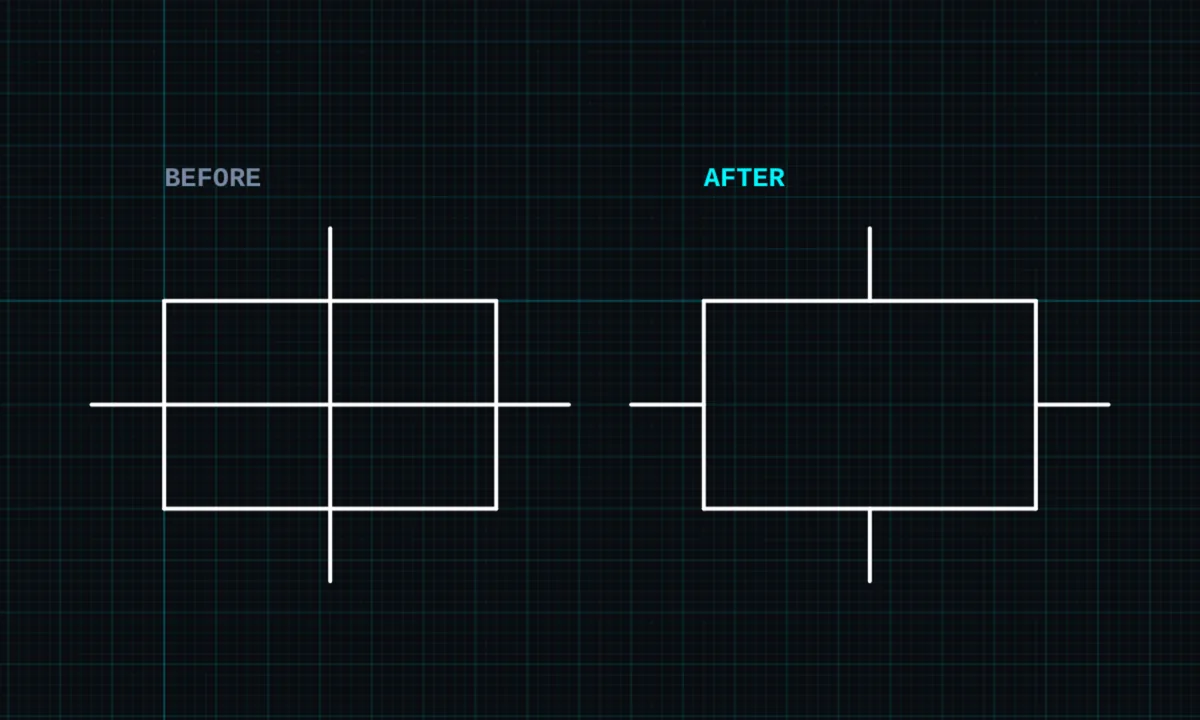
Trim cuts a line, arc or circle back to the nearest point where it crosses another shape. In BenCAD you drag a path across the pieces you want to remove, and everything that path touches is cut away in one go.
Opens BenCAD with trim ready. No download, no sign-up.
How to use trim in BenCAD
- Pick TRIMTap TRIM in the toolbar, in the Edit group. The cursor changes to a crosshair.
- Drag across the pieces to removePress and drag a path over each piece you want gone. You can cross several lines in one stroke.
- Let goEach piece you crossed is cut back to the nearest crossing on either side. Pieces with no crossing are removed whole.
- Undo if neededTap undo (↩) or press Ctrl+Z to put a piece back.
Tips
- Trim works on lines, arcs, circles and ellipses. A curve (spline) that you drag across is removed whole.
- Where several shapes cross at exactly one point, BenCAD tidies up the tiny leftover pieces for you, so no stray end points are left behind.
- To lengthen a line instead, use extend. To round off a corner, use fillet.
Questions
What is the difference between trim and delete?
Delete removes a whole object. Trim removes only the part between crossings, so the rest of the line stays where it is.
Can I trim more than one line at once?
Yes. Drag one path across all the pieces you want to remove and they are trimmed together, as one undo step.
Related tools
ExtendLengthen a line to meet an edgeFillet PRORound a corner to an exact radiusOffset PROParallel copy at an exact distance
Guides
- DXF files: open, edit and export online
- What is 2D CAD?
- CAD on your phone
- How to prepare a DXF for laser cutting or CNC
- CAD basics: the 10 commands you will use every day
More tools: all 2D CAD tools in BenCAD.