2D CAD tool · free
How to extend a line in 2D CAD
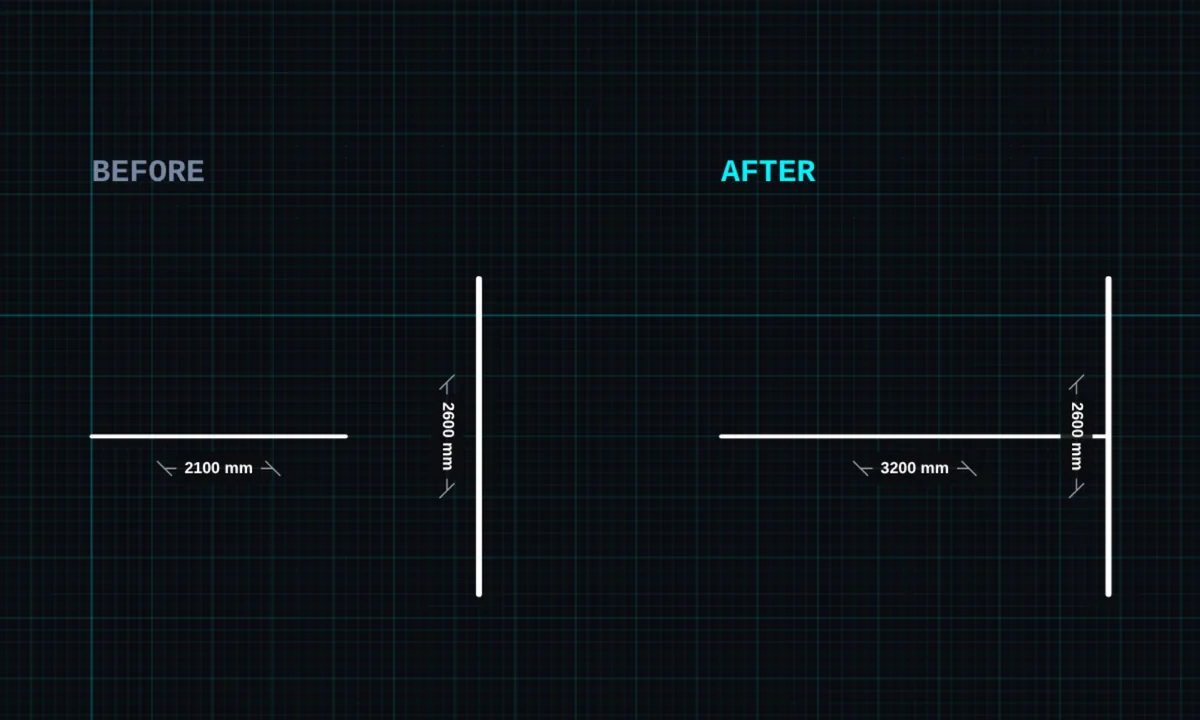
Extend makes a line longer or shorter along its own direction, so it meets another line exactly. In BenCAD you drag the end point, and it snaps to the edges and end points around it.
Opens BenCAD with extend ready. No download, no sign-up.
How to use extend in BenCAD
- Pick EXTENDTap EXTEND in the toolbar, in the Edit group.
- Drag an end pointPress on the end of the line you want to change and drag. The end slides along the line's own direction, so the line stays straight. On an arc, it slides around the arc.
- Line it upDrag to the edge you want it to meet. Snapping to the grid and to end points helps you land exactly on it.
- Let goThe line keeps its new length. The length label updates to the real measurement.
Tips
- Dragging back along the line shortens it, so extend also works as a quick way to cut a line to length.
- For an exact length, use RESIZE instead: tap a line and type the length in millimetres.
- To cut lines back where they cross, use trim.
Questions
Does extend change the angle of the line?
No. The end point moves only along the line's own direction, so the angle stays the same.
Related tools
TrimCut lines back to where they crossFillet PRORound a corner to an exact radiusChamfer PROCut a corner with an angled line
Guides
More tools: all 2D CAD tools in BenCAD.