2D CAD tool · PRO
Print to scale: make a true-scale PDF drawing sheet
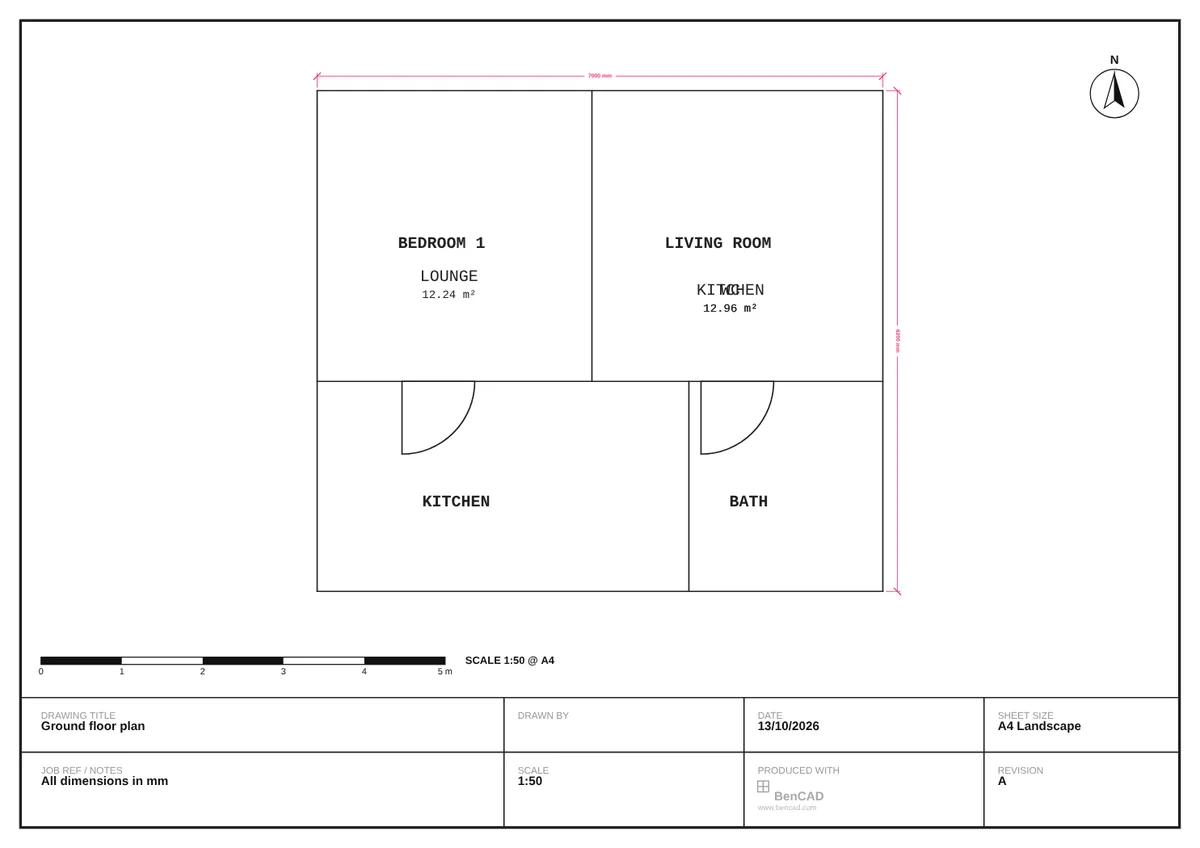
The print-ready sheet lays your drawing out on paper at a true scale, so 4 metres at 1:50 measures exactly 80mm on the printout. Add a title block, scale bar and north arrow, and save it as a PDF.
Print to scale is a PRO tool. Drawing, trim, extend, join and dimensions are free.
How to use print to scale in BenCAD
- Open the sheetIn the side menu, under File, tap the print-ready download button (PRO DOWNLOAD).
- Choose paper and scalePick A4, A3 or A2, portrait or landscape, and a scale from 1:5 to 1:2500. BenCAD starts with the largest standard scale that fits.
- Frame the drawingDrag the drawing inside the viewport to choose what shows on the sheet, and drag the viewport corners to resize it.
- Add the title blockTap TITLE BLOCK to add the drawing title, notes, date and revision. Tap NORTH for a north arrow and drag it to rotate.
- Save the PDFTap PDF. The file is the exact paper size, ready to print at 100% or email.
Tips
- Print at "actual size" or 100% — not "fit to page" — so the scale stays true.
- TEXT: KEEP SIZE keeps notes and labels the same size on paper when you change scale, the way annotative text works in desktop CAD.
- Your sheet settings save with the drawing, so the next print comes out the same.
Questions
What scales can I print at?
1:5, 1:10, 1:20, 1:25, 1:50, 1:100, 1:200, 1:250, 1:500, 1:1000, 1:1250 and 1:2500.
Is the print-ready sheet free?
It is part of BenCAD Pro. The free version downloads a PNG image of your drawing.
Related tools
PNG downloadFree high-resolution imageDXF export PROSave for AutoCAD, CNC and laserDXF import PROOpen DXF files from other CAD
Guides
- DXF files: open, edit and export online
- What is 2D CAD?
- How to draw to scale online
- How to convert a DXF to PDF at the right scale
- How to print a CAD drawing to scale
Related reading
More tools: all 2D CAD tools in BenCAD.