2D CAD tool · free
How to add text to a 2D CAD drawing
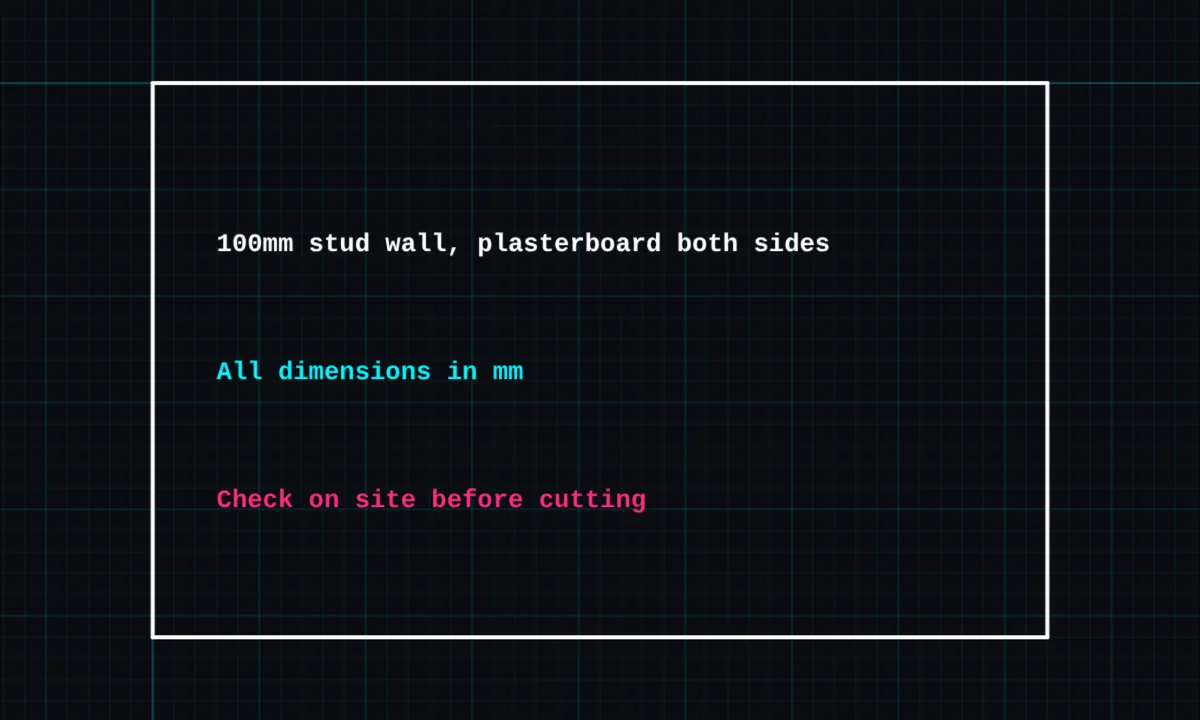
The text tool places notes on your drawing. Drag a box and the text wraps to fit it, or tap to place a single line. Choose the size and colour.
Opens BenCAD with text ready. No download, no sign-up.
How to use text in BenCAD
- Pick TEXTTap TEXT in the toolbar, in the Annotate group.
- Tap or drag a boxTap where the text should go, or drag a box for text that wraps to its width.
- Type your noteType the text. On a phone, Enter adds a new line; on a computer, Ctrl+Enter places it.
- Choose size and colourPick a size from XS to XL and a colour, then tap PLACE TEXT.
Tips
- Edit text later with the EDIT tool: tap any text or leader to change it.
- To point a note at something, use a leader.
- Text keeps its size on paper at any scale when you print with "keep text size" on.
Questions
Is the text tool free?
Yes, text is in the free version.
Related tools
Leaders PROArrow callouts with notesRoom labelsRoom name and floor areaFreehand PROSketch and mark up by hand
Guides
More tools: all 2D CAD tools in BenCAD.