2D CAD tool · free
How to join lines in 2D CAD
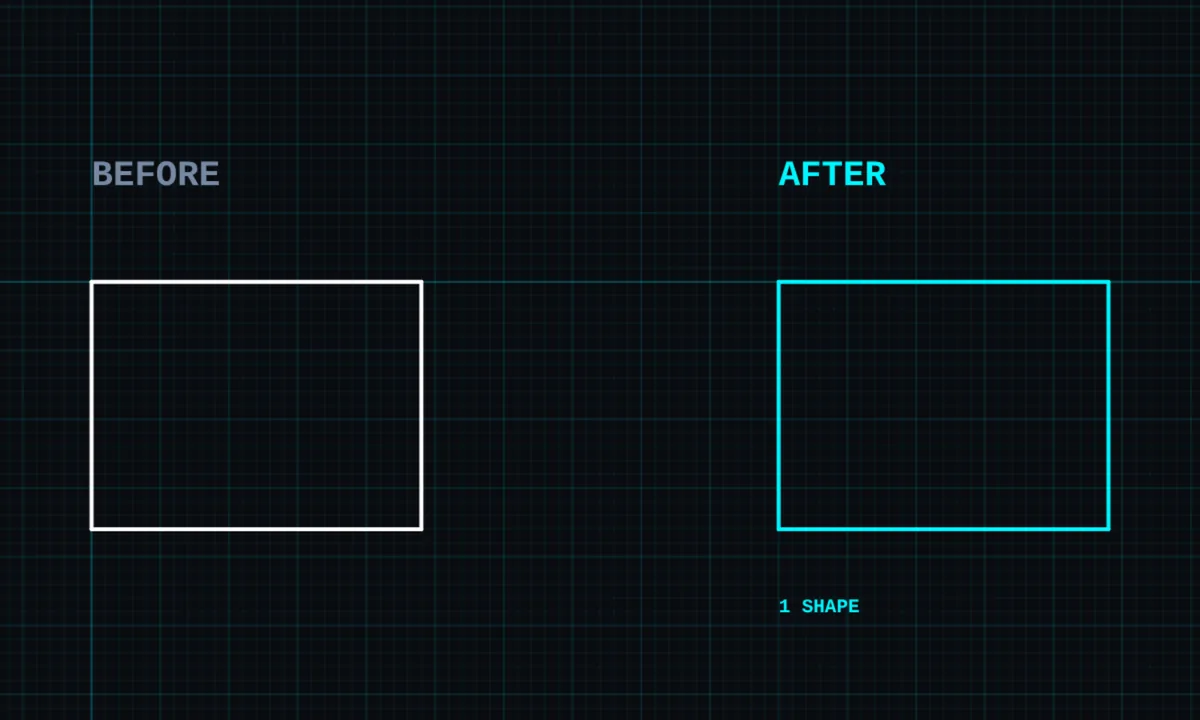
Join turns separate lines and arcs that touch into one shape, so they move, copy and offset together. Two lines that run on in a straight line are merged into a single longer line.
Opens BenCAD with join ready. No download, no sign-up.
How to use join in BenCAD
- Pick JOINTap JOIN in the toolbar, in the Edit group.
- Tap the first lineTap a line, arc or block to start the join.
- Tap each touching lineTap the next line that meets it. Keep tapping to add more. Straight-on lines merge into one.
- FinishTap empty space when you are done.
Tips
- Only lines that touch the shape can be added. BenCAD tells you if a line does not meet it.
- Joined outlines offset cleanly with offset.
- Split a joined shape again with explode.
Questions
Is join free?
Yes, join is in the free version.
Related tools
Explode PROBreak shapes into linesTrimCut lines back to where they crossOffset PROParallel copy at an exact distance
Guides
- DXF files: open, edit and export online
- How to prepare a DXF for laser cutting or CNC
- 2D CAD for laser cutting and CNC
More tools: all 2D CAD tools in BenCAD.