2D CAD tool · PRO
How to offset lines in 2D CAD
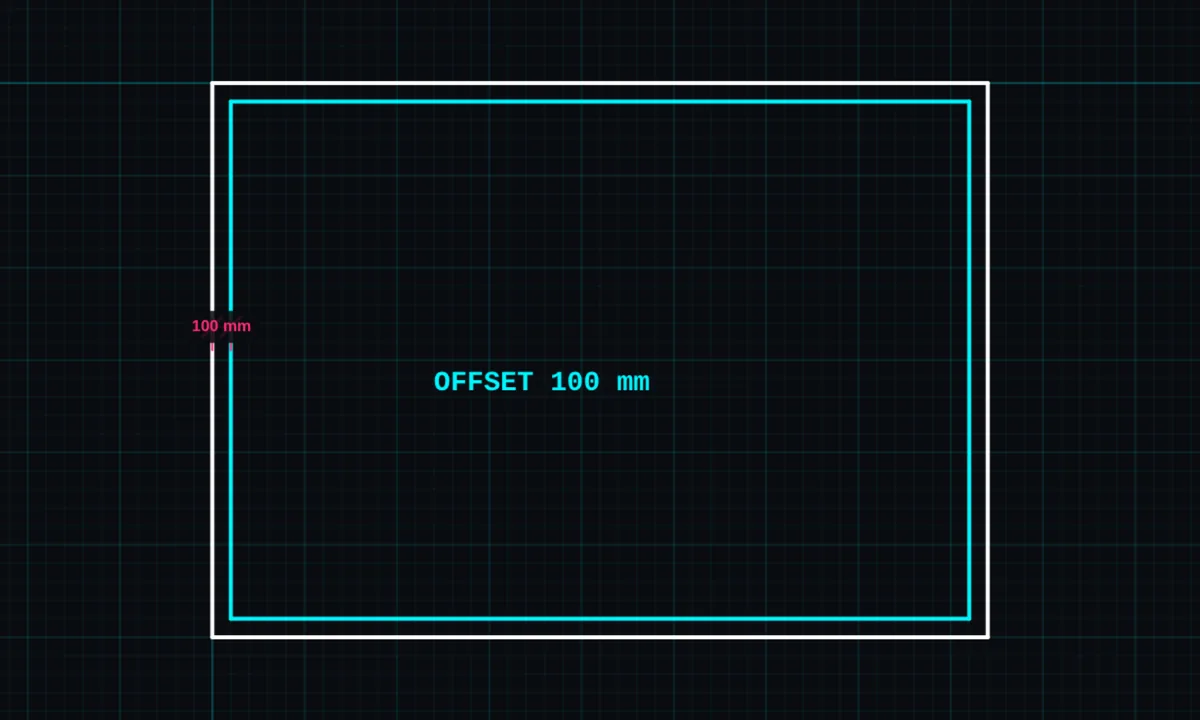
Offset makes a parallel copy of a line, arc, circle or shape at an exact distance. It is the quickest way to draw wall thicknesses, kerbs, borders and clearances.
Offset is a PRO tool. Drawing, trim, extend, join and dimensions are free.
How to use offset in BenCAD
- Pick OFFSETTap OFFSET in the toolbar, in the Modify group.
- Tap the objectTap the line, arc, circle or rectangle you want to copy. Joined lines are offset together as one shape.
- Type the distanceEnter the offset distance in millimetres, for example 100 for a 100mm wall.
- Choose the sideTap the side you want the copy on, or choose BOTH for a copy either side. The copy appears at exactly that distance.
Tips
- Offset a rectangle or a joined outline inwards or outwards to get a matching outline, such as the inner face of a wall.
- Offset a centre line to BOTH sides to draw a wall of a set thickness in one step.
- Clean up where offset lines cross with trim or fillet.
Questions
What can I offset?
Lines, arcs, circles, ellipses, rectangles, polygons and chains of joined lines and curves.
Is offset free?
Offset is part of BenCAD Pro. The free version includes drawing, trim, extend, join and dimensions.
Related tools
TrimCut lines back to where they crossFillet PRORound a corner to an exact radiusJoinMake one shape from many lines
Guides
- What is 2D CAD?
- Drawing a floor plan for building control
- How to draw a section or elevation
- CAD basics: the 10 commands you will use every day
- 2D CAD for engineers
More tools: all 2D CAD tools in BenCAD.