2D CAD tool · PRO
How to chamfer a corner in 2D CAD
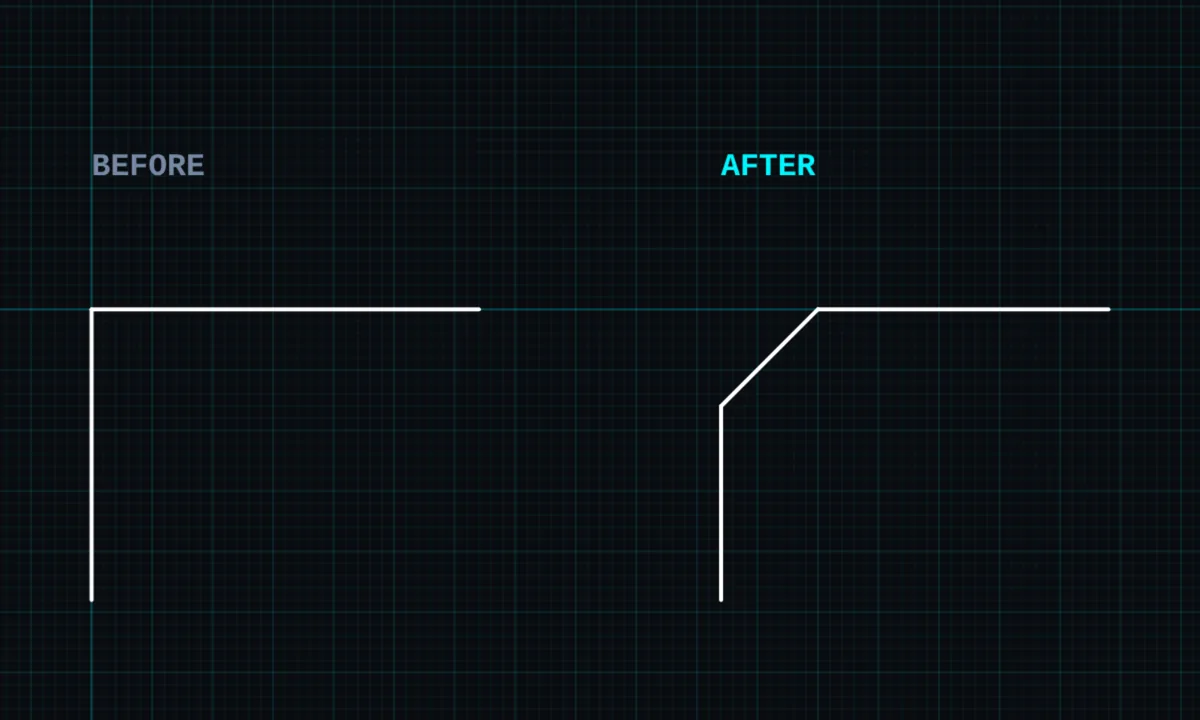
Chamfer cuts a corner off with a straight line. You can cut the same distance along both lines, or a different distance along each.
Chamfer is a PRO tool. Drawing, trim, extend, join and dimensions are free.
How to use chamfer in BenCAD
- Pick CHAMFERTap CHFR in the toolbar, in the Edit group.
- Tap both linesTap the first line, then the second line that shares the corner. The chamfer panel opens.
- Choose EQUAL or TWO DISTANCESEQUAL cuts the same distance along both lines. TWO DISTANCES lets you set each one; the line shown in pink is the first distance.
- Enter millimetres and applyType the distance and tap APPLY. Use SWAP DISTANCES if the long and short sides are the wrong way round.
Tips
- If the distance is longer than either line, BenCAD tells you it is too large instead of drawing a broken corner.
- For a rounded corner, use fillet.
Questions
Is chamfer free?
Chamfer is part of BenCAD Pro.
Related tools
Fillet PRORound a corner to an exact radiusTrimCut lines back to where they crossDimensionsLinear, angle, radius, diameter
More tools: all 2D CAD tools in BenCAD.