2D CAD tool · PRO
How to use CAD blocks
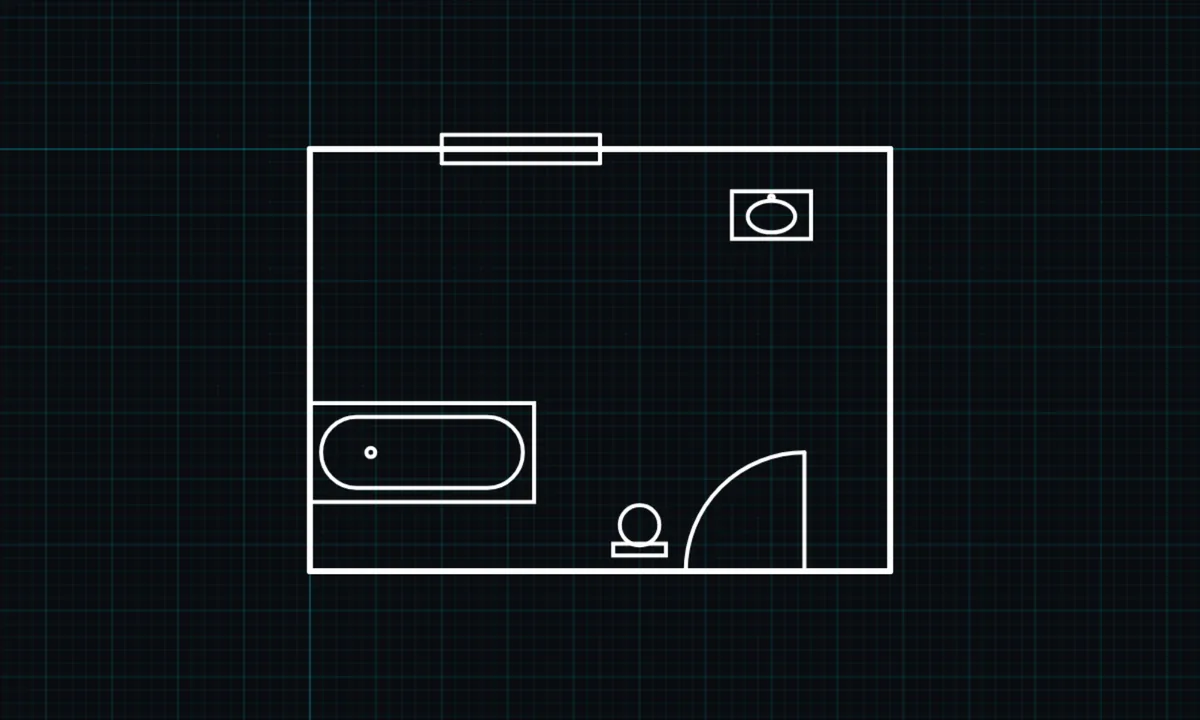
Blocks are ready-drawn symbols you place at real size: doors and windows that sit in a wall, bathroom fittings, and furniture. You can also save part of your own drawing as a block and reuse it.
Blocks is a PRO tool. Drawing, trim, extend, join and dimensions are free.
How to use blocks in BenCAD
- Tap BLOCKSTap BLOCKS in the toolbar. The block picker opens.
- Choose a blockPick a door (single, double or sliding), a window, a toilet, sink, bath or shower, or a sofa, chair, table or bed.
- Tap to place itTap the drawing to place it. Doors and windows snap into the wall line.
- Adjust itUse MOVE to slide it into position.
Tips
- Blocks are drawn at real sizes, for example a 900mm single door and a 1700mm bath.
- Select some of your own lines first, then tap BLOCKS to save them as a new block.
- Use explode to turn a block back into plain lines you can edit.
Questions
Are blocks free?
Blocks are part of BenCAD Pro.
Related tools
Hatch & fills PRO27 patterns: brick, insulation, tilesExplode PROBreak shapes into linesRoom labelsRoom name and floor area
Guides
- Drawing a floor plan for building control
- BenCAD vs KulmanLab
- BenCAD vs LibreCAD
- 2D CAD for architects and architectural technicians
- 2D CAD for interior and product designers
More tools: all 2D CAD tools in BenCAD.