2D CAD tool · PRO
How to add hatching and fills in 2D CAD
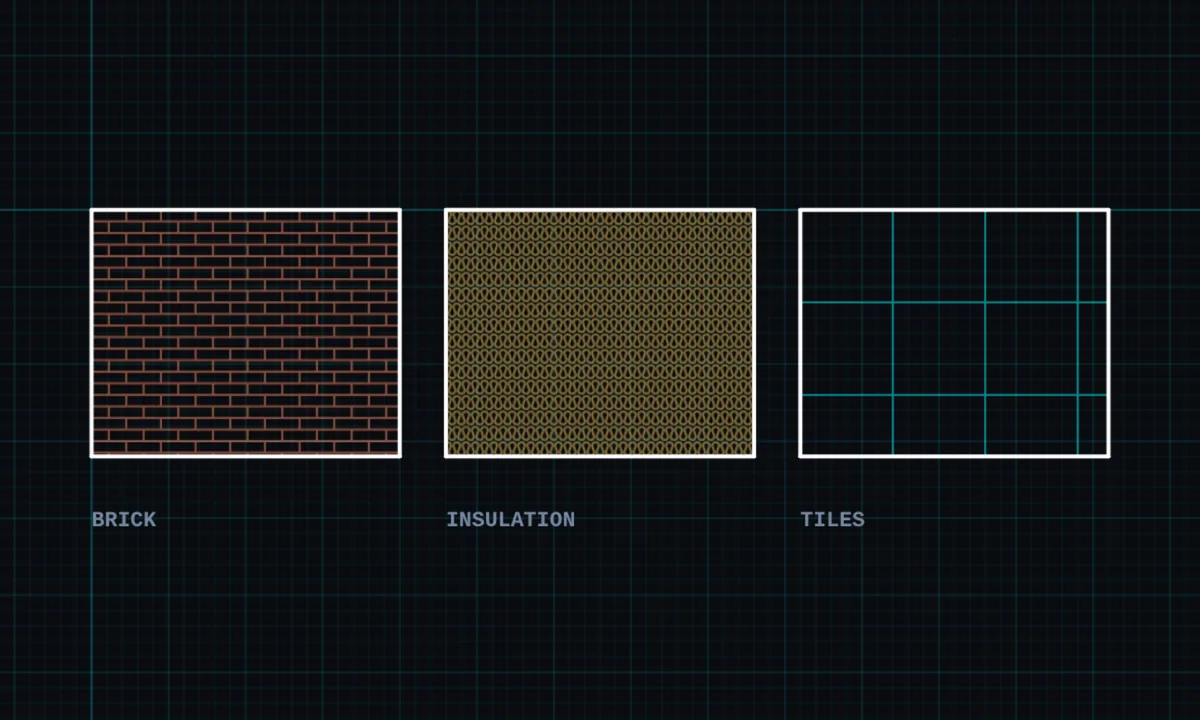
Fills colour in a closed area, and hatches fill it with a pattern. BenCAD has 27 patterns, from plain hatching to building materials drawn at their real size.
Hatch & fills is a PRO tool. Drawing, trim, extend, join and dimensions are free.
How to use hatch & fills in BenCAD
- Tap FILLTap FILL in the toolbar, in the Edit group. The fill bar opens.
- Choose a pattern and colourPick a pattern and colour, and set how see-through it is.
- Tap inside an areaTap inside any closed shape to fill it. Keep tapping to fill more areas.
- FinishTap DONE, or pick another tool.
Tips
- General patterns: solid, hatch at 45° either way, vertical, horizontal, crosshatch, diamond, dots, zigzag, wave and dash.
- Building materials at real size: brick (75mm courses), blockwork, insulation, rigid insulation, concrete, timber, hardcore and earth.
- Floors and outdoors: tiles, herringbone, floorboards, decking, grass, gravel, block paving and paving slabs.
Questions
Do hatches print to scale?
Yes. Material patterns are sized in millimetres, so a brick hatch prints at true brick size on the <a href="/tools/print-to-scale/">print-ready sheet</a>.
Are fills free?
Fills and hatches are part of BenCAD Pro. Drawings that already contain fills open and show correctly in the free version.
Related tools
Blocks PRODoors, windows, fixtures, furnitureAreaTap inside to measure m²Print to scale PROTrue-scale PDF with a title block
Guides
- Drawing a floor plan for building control
- How to draw a section or elevation
- BenCAD vs KulmanLab
- 2D CAD for architects and architectural technicians
- 2D CAD for interior and product designers
More tools: all 2D CAD tools in BenCAD.