2D CAD tool · free
How to set the drawing scale and units
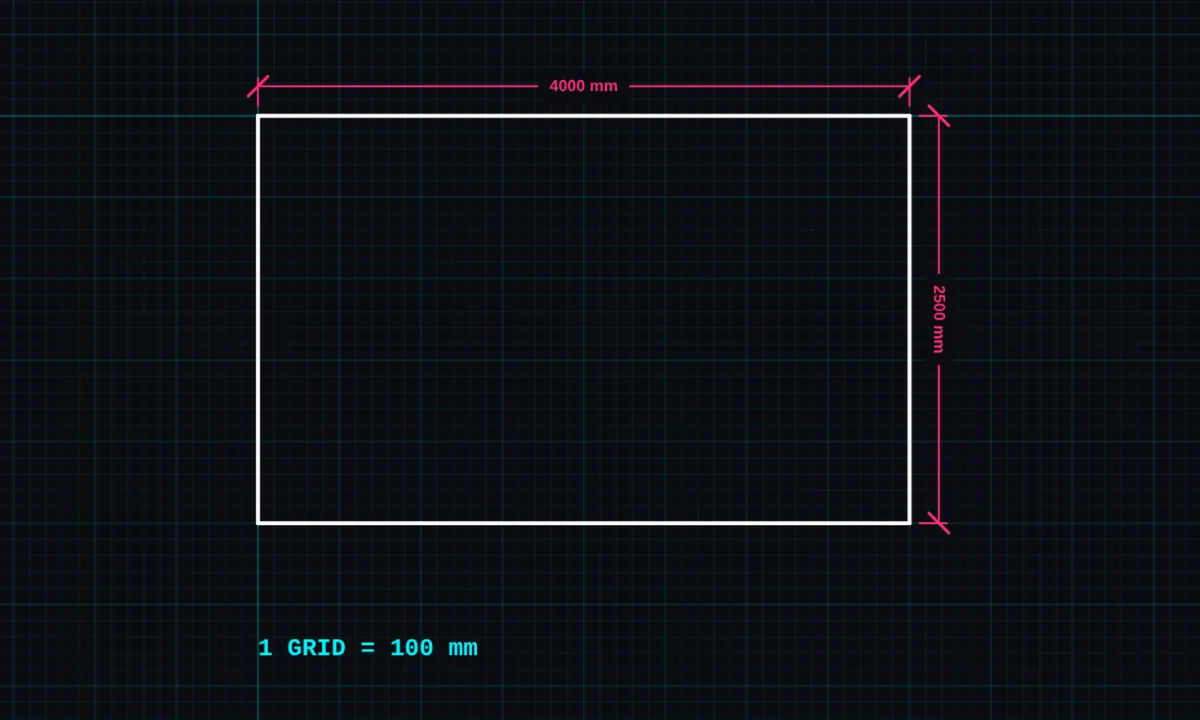
You draw in BenCAD at real size. The scale setting decides how many millimetres one grid square stands for, so every length, dimension and area comes out in real units.
Opens BenCAD with units & scale ready. No download, no sign-up.
How to use units & scale in BenCAD
- Open the side menuTap the ☰ menu and find the Scale section.
- Set 1 grid =Drag the slider or type how many millimetres one grid square is, from 10mm to 2000mm.
- Choose unitsUnder Units, choose Metric (mm) or Imperial (in).
Tips
- For a single room, 100mm per grid square works well. For a whole house, try 500mm.
- This is not the same as the print scale. Choose 1:50 or 1:100 when you print, on the print-ready sheet.
- Imperial units are part of BenCAD Pro.
Questions
Does changing the scale change my drawing?
It changes what each grid square means, so lengths and areas are read in real units. Set it before you start drawing.
Related tools
GridShow, hide and size the gridDimensionsLinear, angle, radius, diameterPrint to scale PROTrue-scale PDF with a title block
Guides
Related reading
- The UK's Cowboy Builder Crackdown — And Why Professional Tradespeople Should Welcome It
- How to Draw a Floor Plan in Minutes with BenCAD
- UK Construction's Retrofit Boom Is Coming — But the Next Year Will Separate Who Survives It
More tools: all 2D CAD tools in BenCAD.