2D CAD tool · free
How snapping works in 2D CAD
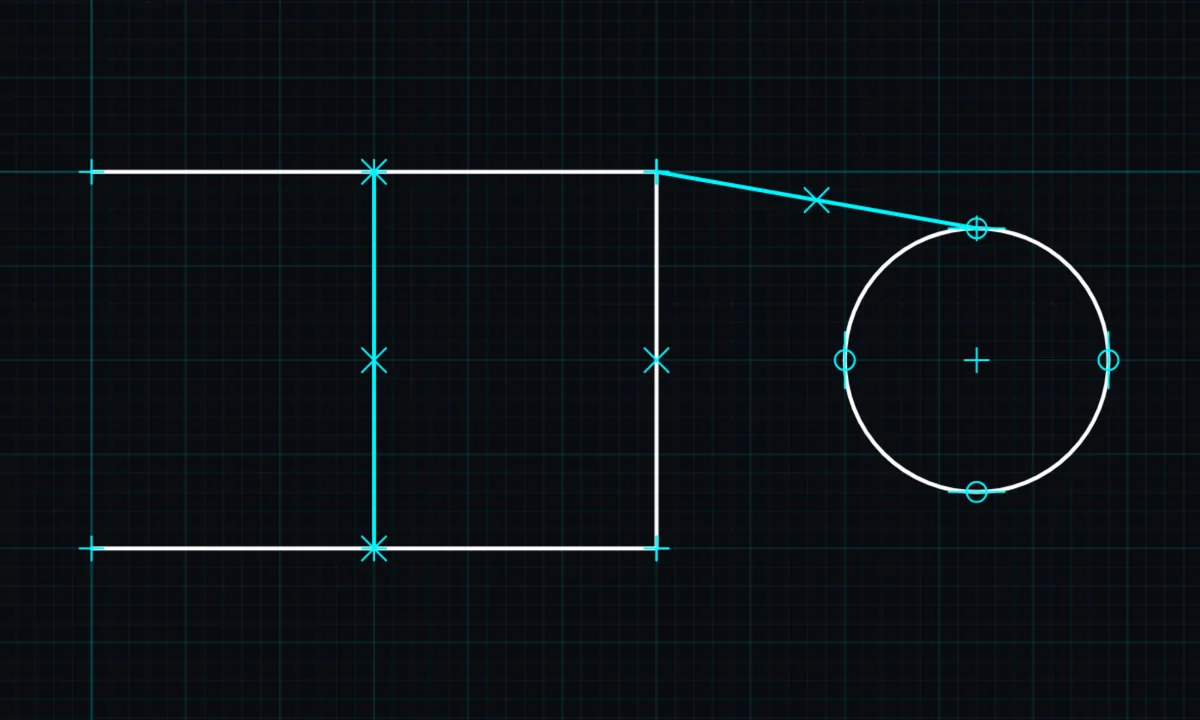
Snapping pulls the point you tap onto something exact, such as a grid point or the end of a line, so lines meet perfectly even on a phone screen.
Opens BenCAD with snap ready. No download, no sign-up.
How to use snap in BenCAD
- Open the side menuTap the ☰ menu and find the Snap section.
- Choose what to snap toGrid Snap snaps to grid points. Endpoint snaps to the ends of lines. Circle tangent snaps lines to touch a circle.
- Straight lines onlyTurn this on to keep lines horizontal or vertical, like ortho mode in desktop CAD.
- Turn snapping offTick Freehand (no snap) to place points exactly where you tap.
Tips
- Grid snap uses the grid size set in the same menu. See grid.
- Move in SNAP mode lines up a point on one shape exactly with a point on another.
Questions
Why won't my line land where I tap?
It is snapping to the nearest grid point or end point. Make the grid smaller, or turn on Freehand (no snap).
Related tools
Guides
- What is 2D CAD?
- CAD on your phone
- CAD basics: the 10 commands you will use every day
- Free 2D CAD for students
Related reading
More tools: all 2D CAD tools in BenCAD.