2D CAD tool · free
How to move objects in 2D CAD
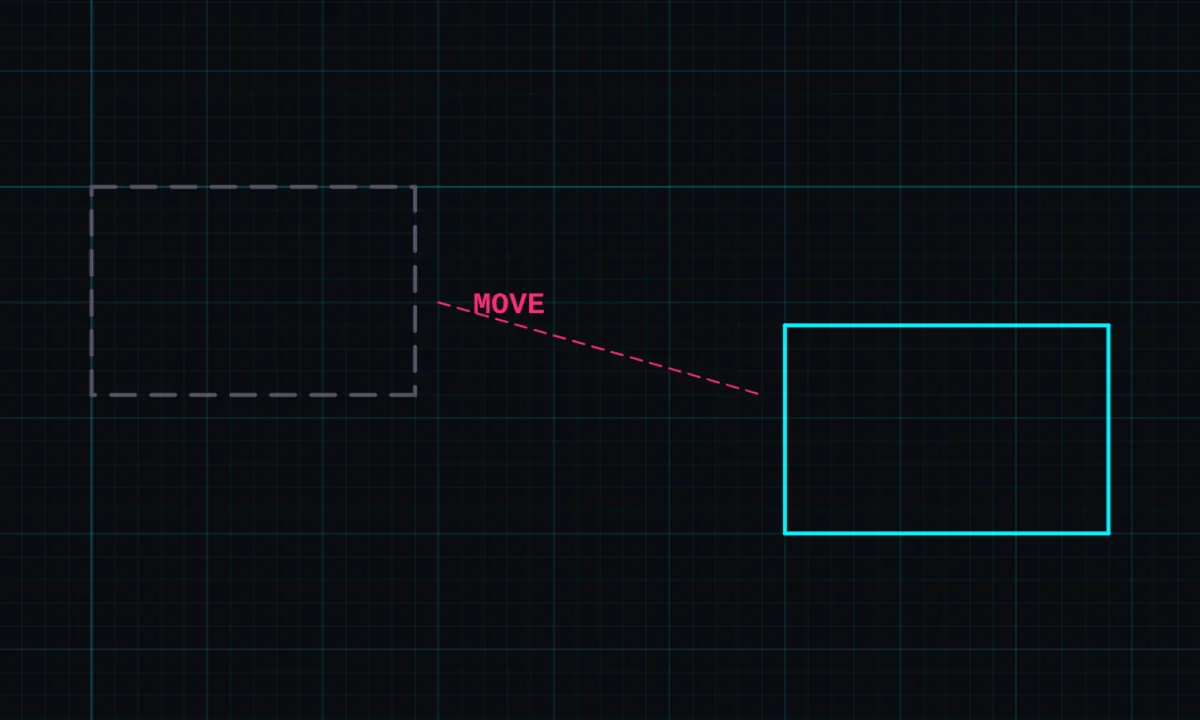
Move repositions a shape. Drag it freely, or use SNAP mode to pick a point on the shape and drop it exactly onto a point elsewhere in the drawing.
Opens BenCAD with move ready. No download, no sign-up.
How to use move in BenCAD
- Pick MOVETap MOVE in the toolbar. Choose FREE or SNAP.
- FREE: drag the shapeDrag any line to reposition it. Lines joined to it move with it.
- SNAP: pick a handle pointTap the object, tap the handle point you want to line up, then drag it onto the target point. It snaps exactly.
Tips
- Tap MOVE again while moving to switch between FREE and SNAP.
- Select several objects first with select to move them together.
- Dimensions attached to a shape follow it when it moves.
Questions
Can I move by an exact distance?
Use SNAP mode to move a point onto another exact point, such as a grid point or an end point.
Related tools
More tools: all 2D CAD tools in BenCAD.