2D CAD tool · free
How to draw a line in 2D CAD
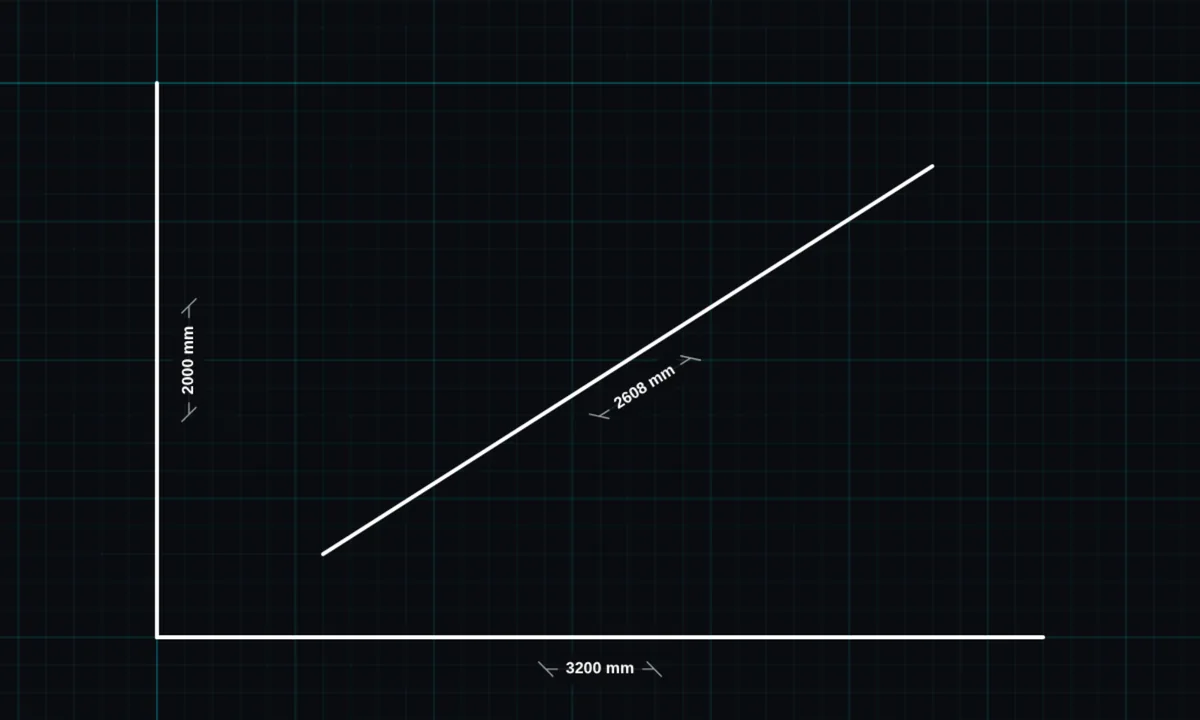
The line tool draws a straight line between two points. BenCAD shows its real length as you drag, snaps to the grid and to other end points, and can lock the angle for you.
Opens BenCAD with line ready. No download, no sign-up.
How to use line in BenCAD
- Pick LINETap LINE in the toolbar, in the Shapes group.
- Drag from start to endPress where the line starts and drag to where it ends. The length shows in millimetres as you go.
- Lock the angle if you need toTap ANGLE LOCK and choose 0°, 30°, 45°, 60°, 90° or type any angle. The line then only grows along that angle.
- Let goThe line is placed. Its end points snap to the grid and to the ends of other lines.
Tips
- To make a line an exact length after drawing it, use resize and type the length.
- Turn on "Straight lines only" in the snap settings to keep every line horizontal or vertical.
- For a closed box in one go, use the rectangle tool.
Questions
Can I type an exact length?
Yes. Draw the line, then use RESIZE and enter the length in millimetres. The line keeps its angle.
Related tools
RectangleBoxes and rooms in one dragSnapGrid, end points, tangents, orthoResizeType an exact length or size
Guides
- What is 2D CAD?
- CAD on your phone
- How to draw a section or elevation
- CAD basics: the 10 commands you will use every day
- The best free 2D CAD software in 2026
Related reading
More tools: all 2D CAD tools in BenCAD.