2D CAD tool · PRO
How to scale objects in 2D CAD
Scale makes a shape bigger or smaller about a base point. Type a factor, such as 2 for double size, or give a reference: the current length of a line and the length it should be.
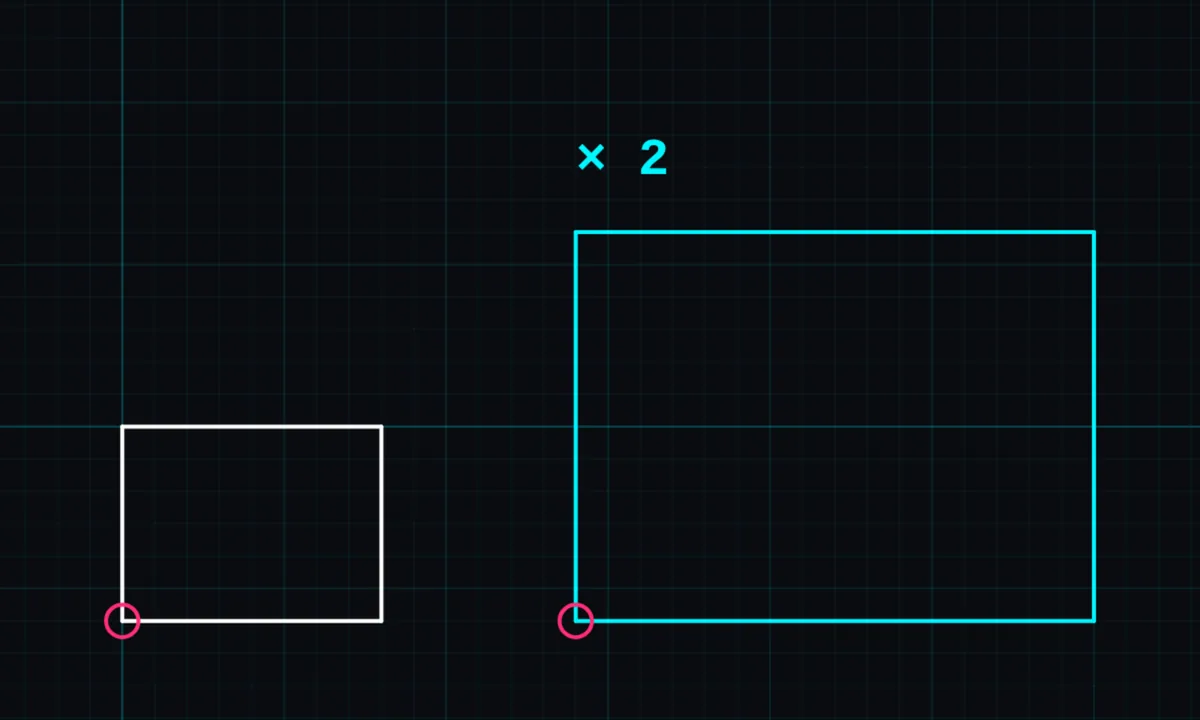
Scale is a PRO tool. Drawing, trim, extend, join and dimensions are free.
How to use scale in BenCAD
- Pick SCALETap SCALE in the toolbar, in the Edit group.
- Tap the objectTap the shape to scale.
- Tap the base pointTap the point that should stay still while everything else grows or shrinks.
- Enter the scaleChoose FACTOR and type it (2 = double, 0.5 = half), or REFERENCE and type the current and new length in millimetres. Or tap DRAG to scale by eye.
Tips
- REFERENCE is the quickest way to fix an imported drawing that came in at the wrong size.
- To change one line's length, use resize instead.
- This scales objects. To change the drawing scale (how many millimetres one grid square is), see units and scale.
Questions
Is scale free?
The scale tool is part of BenCAD Pro.
Related tools
ResizeType an exact length or sizeRotateExact angle or freehandUnits & scaleMillimetres per grid, metric or imperial
Guides
- DXF files: open, edit and export online
- How to open a DXF file on your phone
- How to convert a DXF to PDF at the right scale
More tools: all 2D CAD tools in BenCAD.