2D CAD tool · PRO
How to add centre marks in 2D CAD
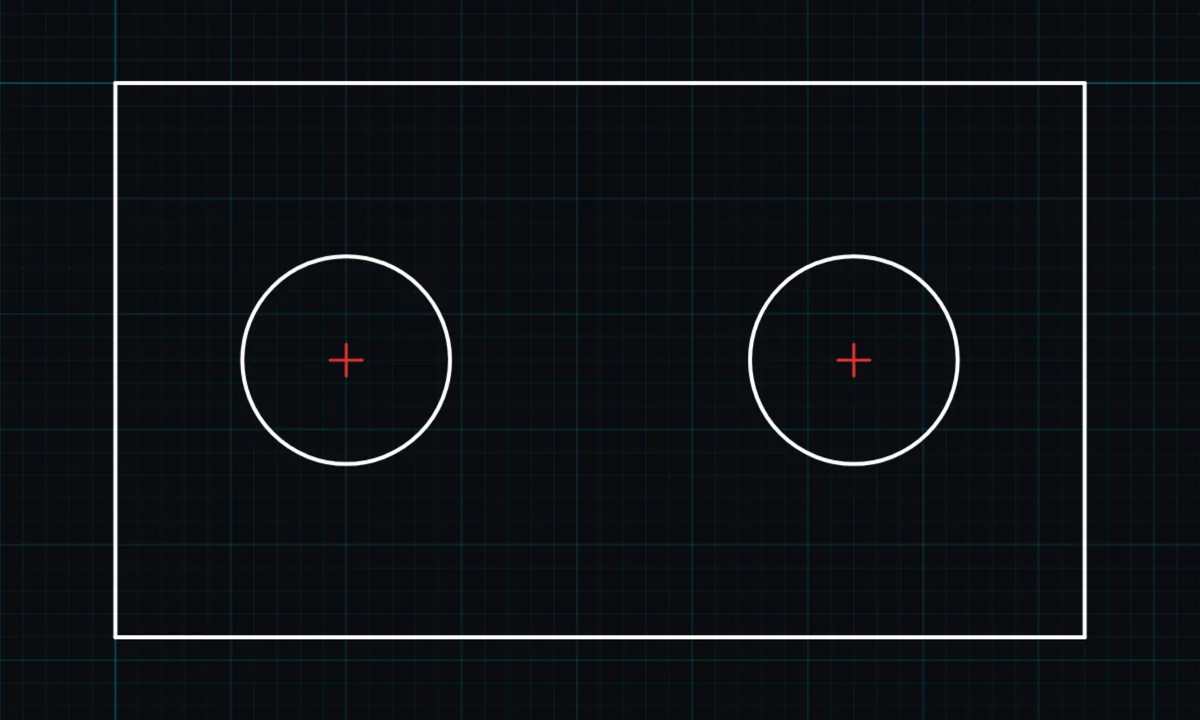
Centre marks show the exact centre of a circle or arc, the way engineering drawings mark holes. A centre line can also be drawn halfway between two parallel lines.
Centre marks is a PRO tool. Drawing, trim, extend, join and dimensions are free.
How to use centre marks in BenCAD
- Pick CENTTap CENT in the toolbar, in the Annotate group.
- Tap a circle, arc or lineTap the shape to mark. The centre marker panel opens.
- Choose the styleChoose a centre mark or a centre line, and BOTH, HORIZONTAL or VERTICAL. Tap APPLY.
- Centre line between two linesFor a straight line, choose centre line, then tap a second parallel line. The centre line is drawn halfway between them.
Tips
- Dimension from a centre to an edge with the dimension tool.
Questions
Are centre marks free?
Centre marks are part of BenCAD Pro.
Related tools
CircleCentre and radiusDimensionsLinear, angle, radius, diameterLeaders PROArrow callouts with notes
Guides
More tools: all 2D CAD tools in BenCAD.